How To Assign Leads Automatically From The Website

Published: 2024-10-21 15:30:21
16 Views
Training and Educational Resources


IN THE CRM


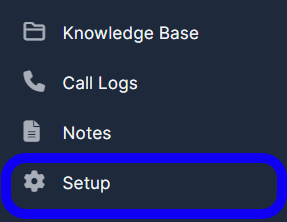
1. Go to "Setup" tab in the left menu.


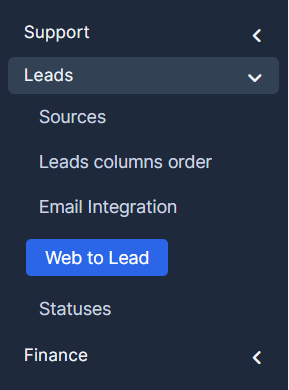
2. Expand the "Leads" tab and select "Web to Lead".


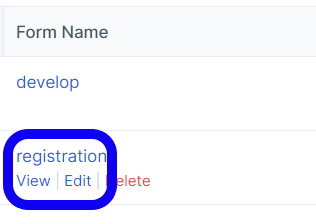
3. Click on the "Edit" button under "registration".


4. Choose a tab "Form Information & Setup".
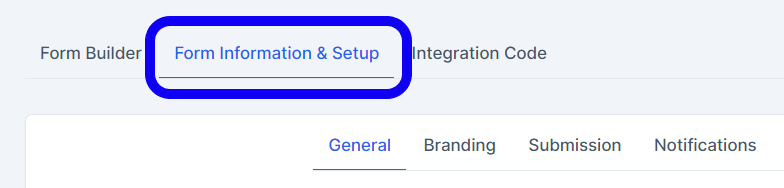


5. In the "General" tab in the "Responsible" drop-down list select an agent that a lead will be assigned to.



6. Hit the "Submit" button in the bottom of the page.



Did you find this article useful?

  • Add Balance to Account

    1. Make sure that the user is already a trader: Open a Trading account/Convert to Traders. Find "Tr...

  • Applying Subscription

    1. Open the Podcator app: https://app.podcator.com/ 2. Press on "Manager" option on the left side ...

  • Finding FAQ

    To find FAQ visible for every user/admin, use the link: https://crm.podcator.com/knowledge_base Or r...

  • Enabling/disabling practice/real acc

    1. Go to the "Admin" button in the settings on the left side of the page. Press on "Trading" out of...

  • Adding default tokens

    How to make it so the default Watchlist information showed the currencies you want. 1. Set the list ...