How To Manage Notes?
IN THE CRM
General Settings
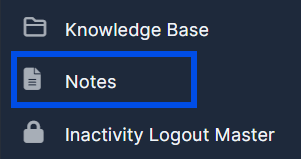
1. Go to "Notes" in the left menu.
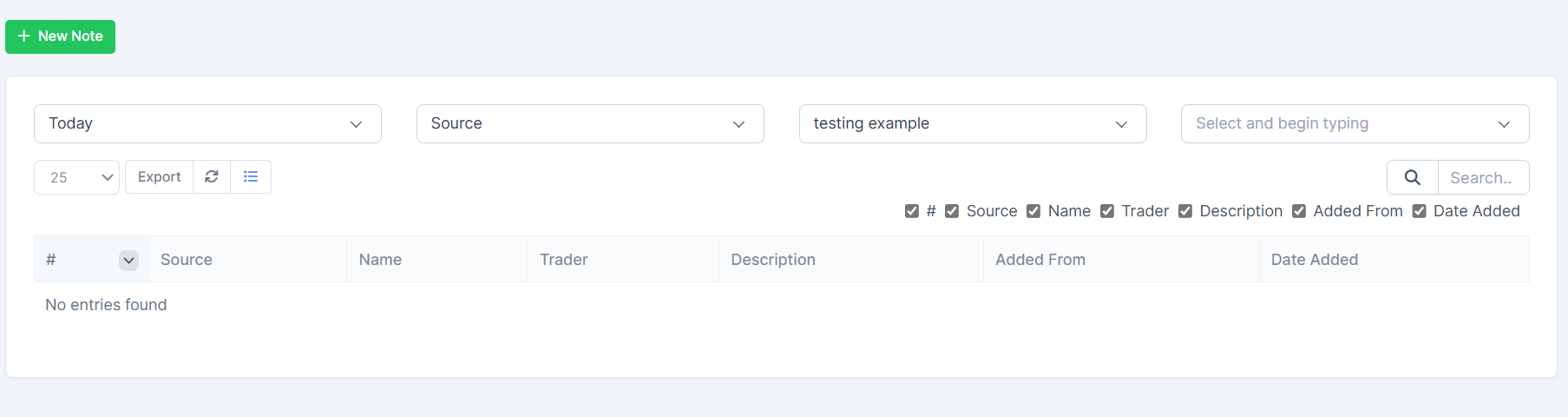
2. Inside "Notes" you will be able to search and filter for all the notes in the CRM.
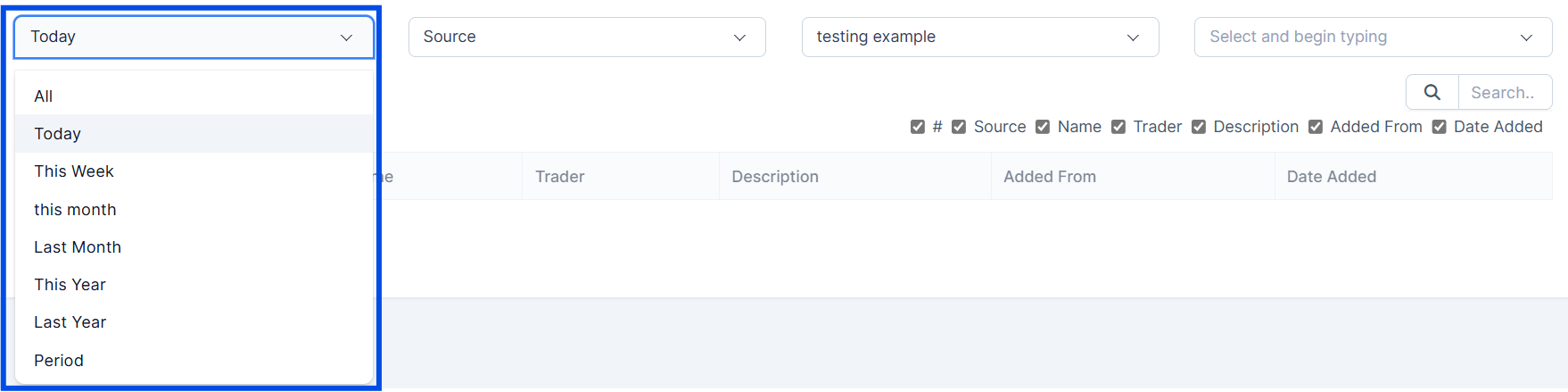
3. You can search for "Notes" using a time period by pressing the time period dropdown.
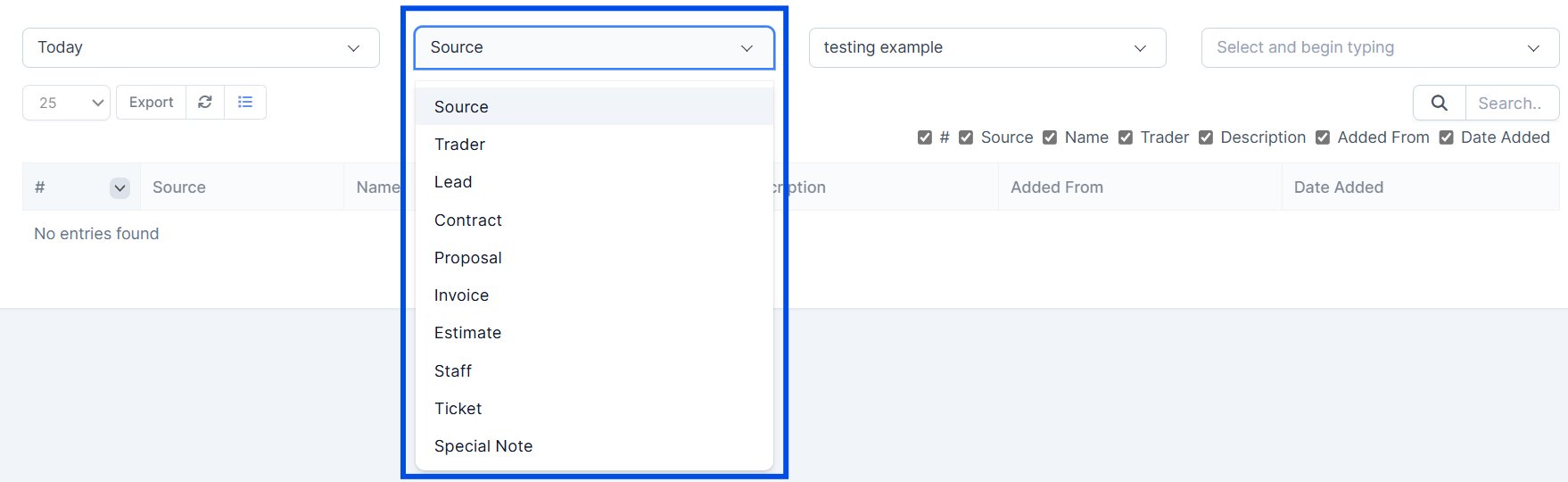
4. You can also search for "Notes" in specific pages on the CRM by pressing the CRM page dropdown.
5. You can also search for "Notes" created by specific users on the CRM by pressing the users dropdown.

6. Finally you can also search for "Notes" just by name by using the search bar.

Notes on the Lead
1. Go to "Leads" in the left menu.

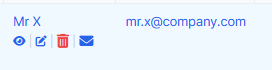
2. Press on "View" or on the name of the user.
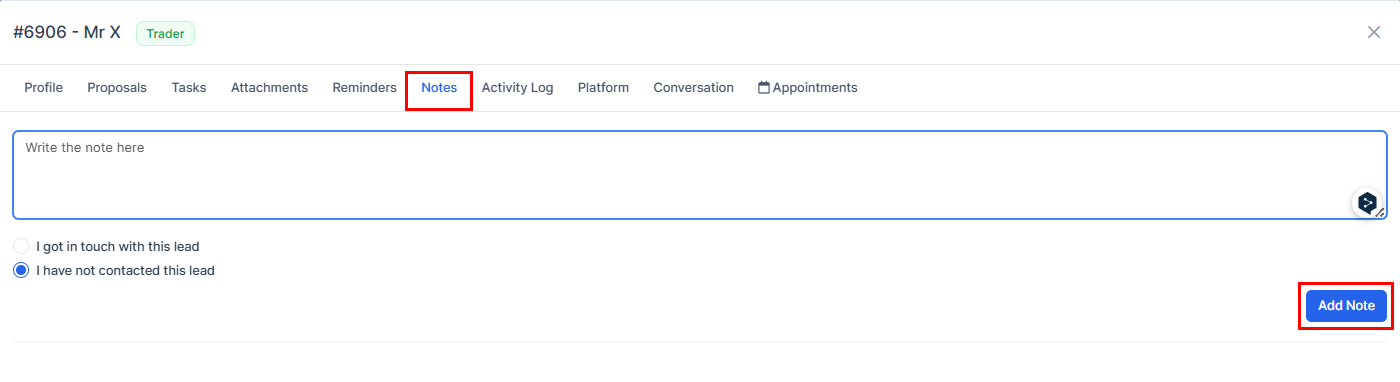
3. Go to "Notes", write the note in and press on "Add note".
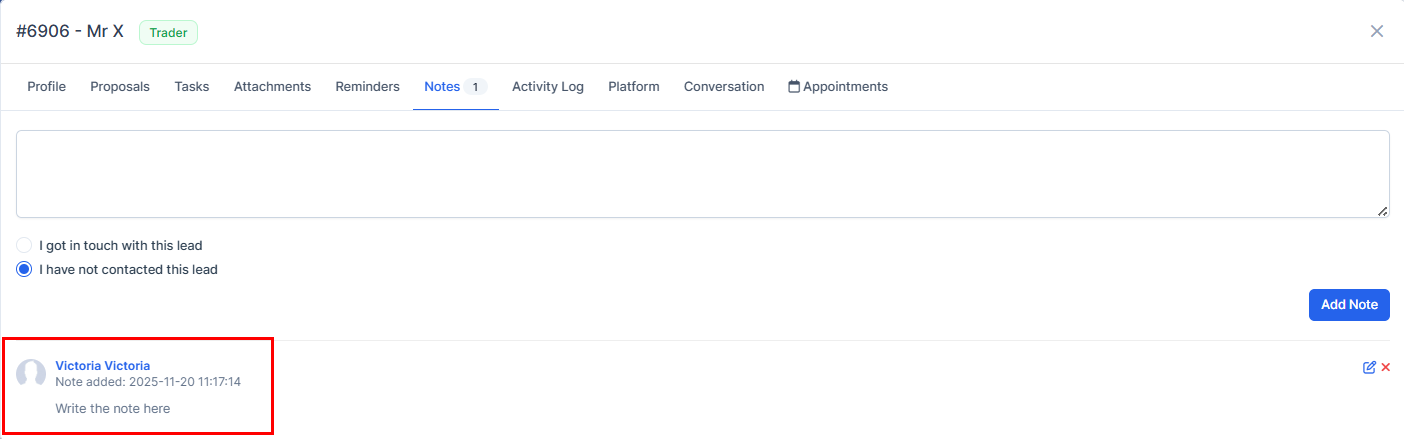
4. The note will be added here.
Remarks on the Lead Manager
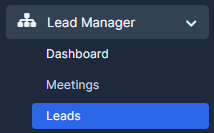
1. Go to "Lead Manager" and press on "Leads" in the left menu.
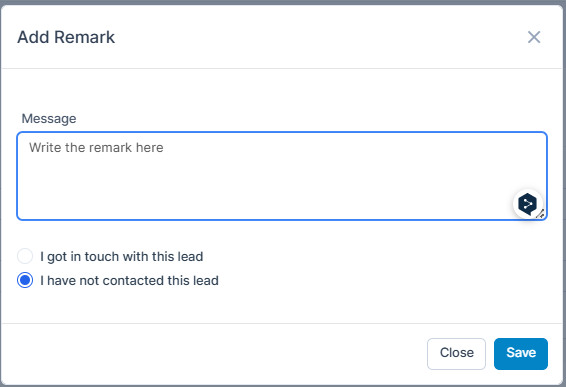
2. Find the user, scroll to the right side and press on the pencil to add a remark.

3. Write in the remart and press on "Save".
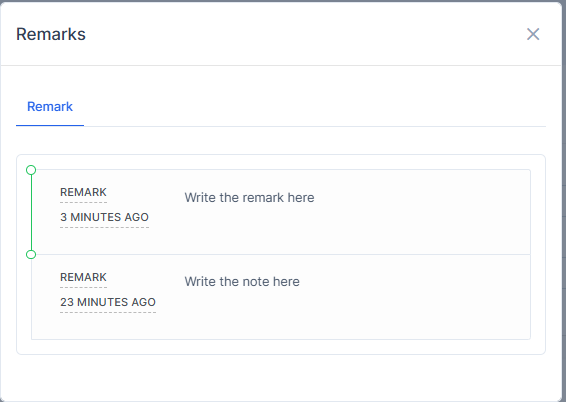
3. Press on "View" on "Remarks" to be able to view the remark.
3. Press on "View" or on the name of the user.
3. Go to "Remarks" to be able to view the remarks.