Managing and Enabling Staff permissions
This article shows different possibilities of the permissions set up that allows the agent see a particular information.
IN THE CRM
Setting up access to the platform
View Own
With the ability to view only the platform clients assigned to the agent
Make sure the trader is assigned to the agent!
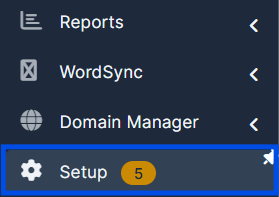
1. Go to "Setup".
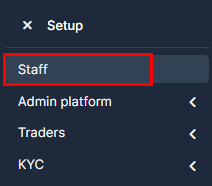
2. Go to "Staff".
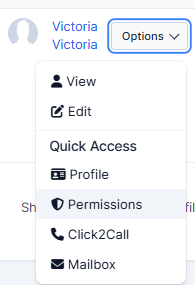
3. Choose the staff member and select "Permissions".
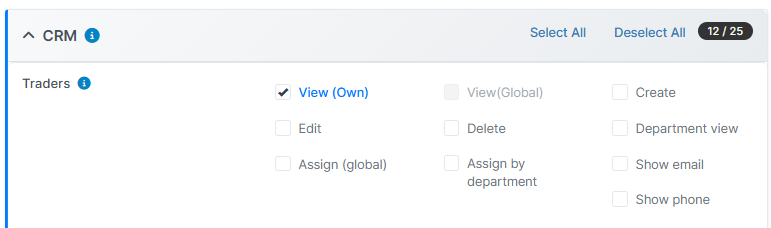
4. On the "Traders/Clients", make sure to enable "View (Own)"
in order to see only Traders assigned to you.
5. Follow to "Trading Platform Access" and make sure to enable "Platform Manager", "User Management", "View Assigned Clients Only" and other permissions for the funtions you need the agent to be able to view/manage.
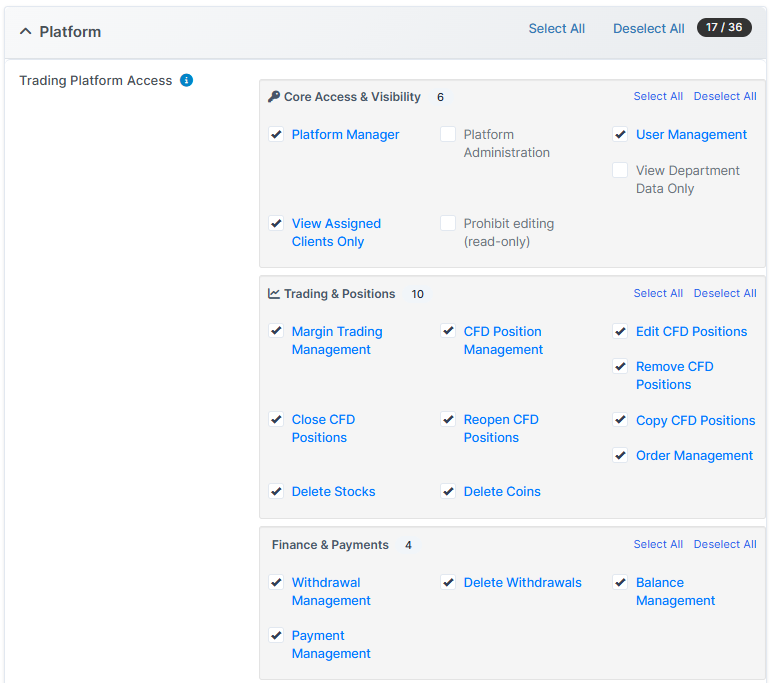
6. Press on "Submit" to remember the choice.

IN THE CRM
Setting up access to the platform
View by Department
With the ability to view only the platform clients assigned to the department the agent is in
Make sure the trader is assigned to the agent from the department the staff member is in!
1. Go to "Setup".
2. Go to "Staff".
3. Choose the staff member and select "Permissions".
4. On the "Traders/Clients", make sure to enable "Department View"
in order to see only Traders assigned to you.
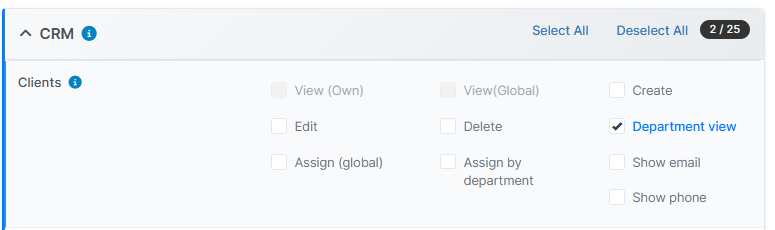
5. Follow to "Trading Platform Access" and make sure to enable "Platform Manager", "User Management", "View Department Data Only" and other permissions for the funtions you need the agent to be able to view/manage.
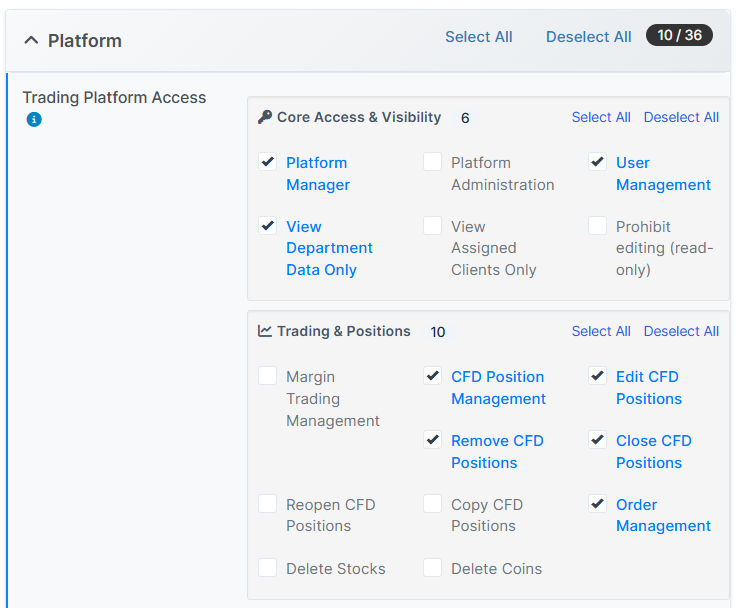
6. Press on "Submit" to remember the choice.

7. Press on "Setup".

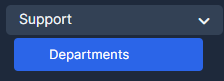
8. Press on "Support" and choose "Departments".
9. Press on "Edit" on the Department's settings.

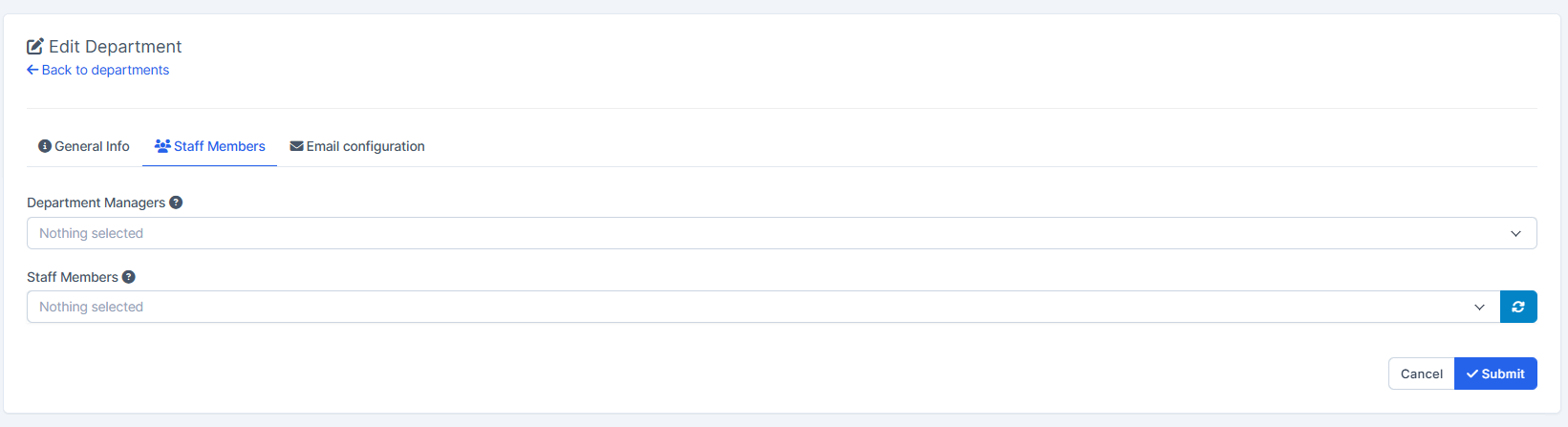
10. Select "Staff Members" tab and make sure to choose a Department Manager. This way the Manager will be able to see the leads or traders of their department.
Note, if another Department Manager is still in the staff field, and you don't want them to see the leads/traders of another department, remove them from the staff field.
Press on "Submit" once done.
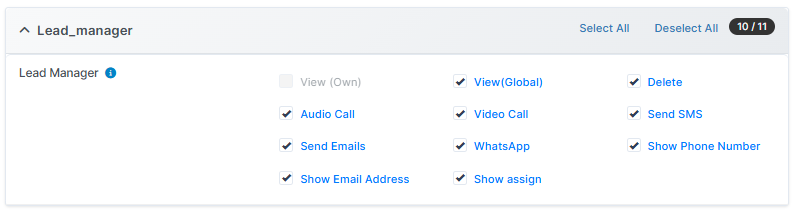
Giving the Access to the Lead Manager
Make sure the lead is assigned to the agent!
1. Go to "Setup".
2. Go to "Staff".
3. Choose the staff member and select "Permissions".
4. On the "Lead Manager" category, enable the permissions for the agent.
5. Press on "Submit" to remember the choice.
This article may be useful for you: Setting up roles