How to Create & Manage Trader Preset?
Trader presets are sets of settings that can be applied to multiple users. You can think of them as groups. This guide shows how you set up user settings for a group of users.
In general, you can create a preset and set up the options you require, and then apply this preset to all the traders you've added to it.
Alternatively, you can change some settings and then reapply them to all the traders assigned to this preset.
When the preset is applied (individually for some users or globally for all users associated with the preset), all the settings from the preset will be copied to each user.
IN THE CRM
1. Go to "Setup".
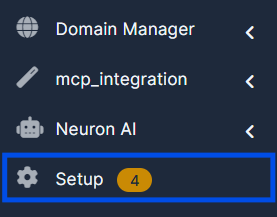
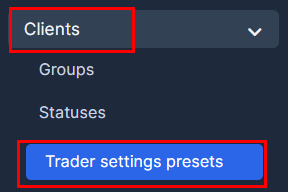
2. Choose "Traders"/"Clients" and press on "Trader Setting Presets" tab.
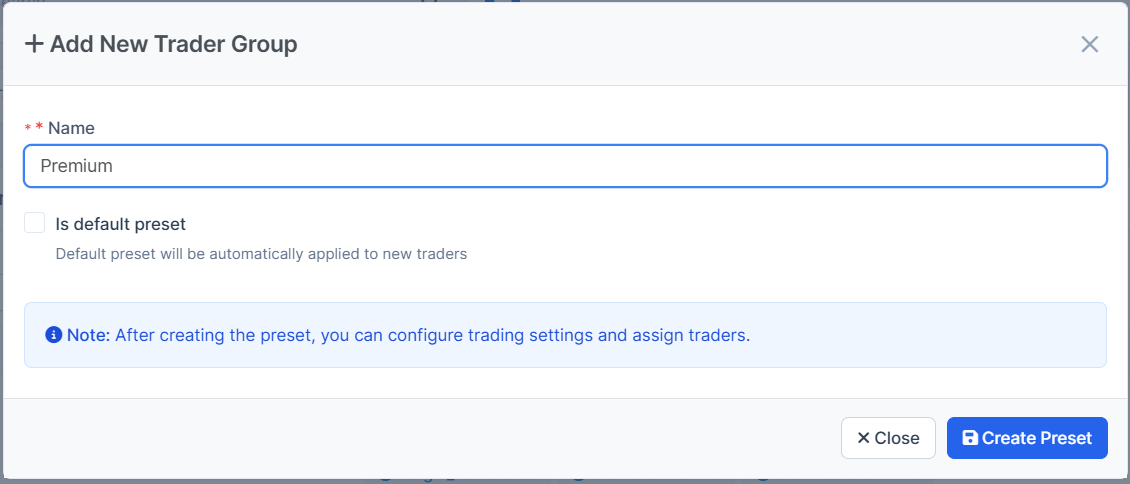
3. Press on the "New Traders Group" button.

4. Choose the new name and press on "Submit" button. Approve the action with "Create Preset". You will be able to find the group on the same page in the list after it refreshes.
Up to your need, you can choose whether this Set is going to be a default one.
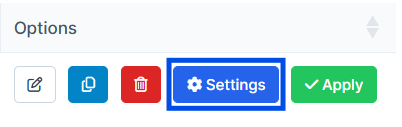
5. Go back to the list of the presets and hoose the desired preset. Press on "Settings".
6. The next settings are managable one by one and can be applied to any traders required.
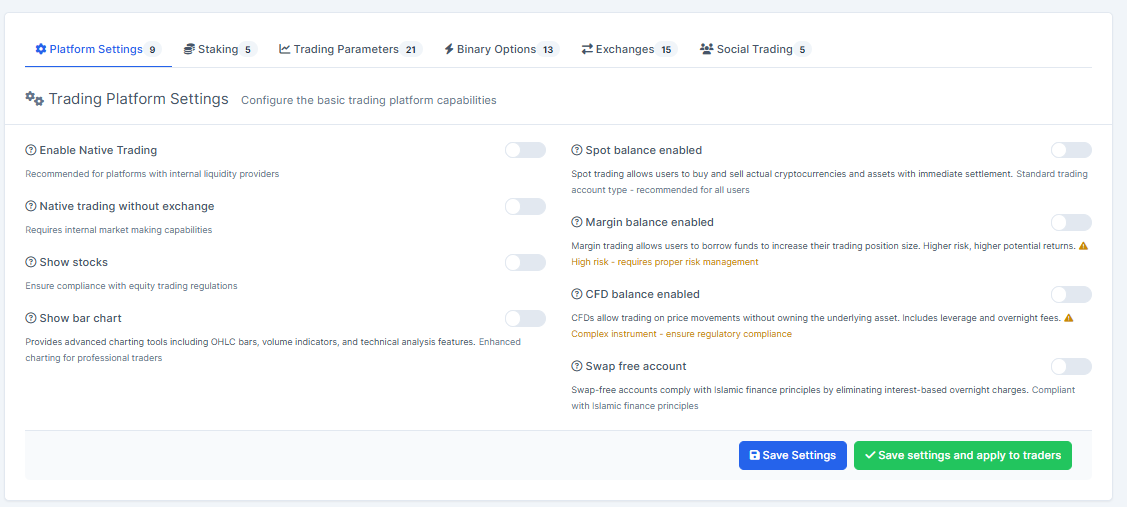
On the "Platform Settings" presets you can manage the account types which are to be set as it's chosen.
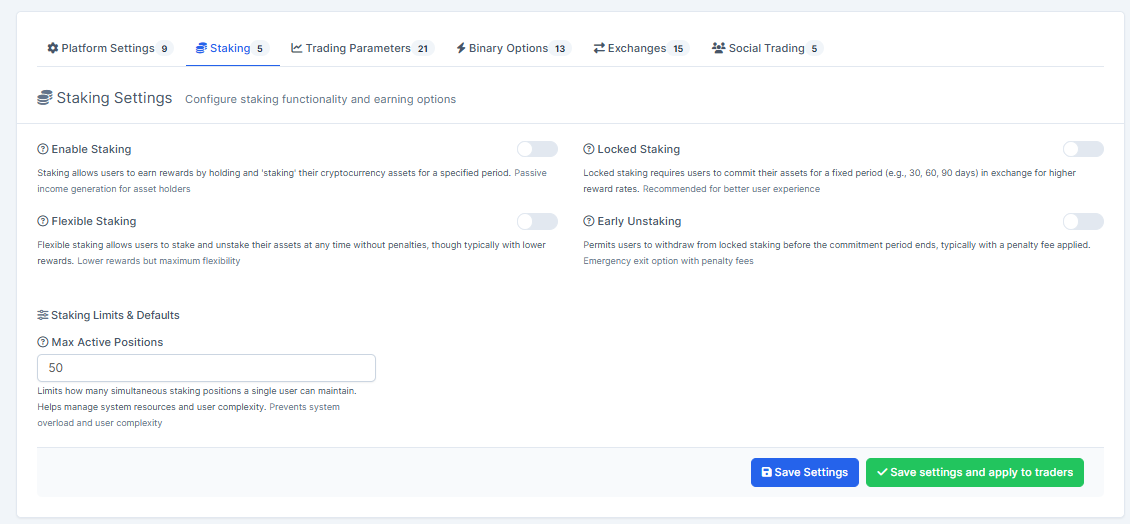
On the "Staking" presets you can manage the variants of the staking possibilities for the accounts.
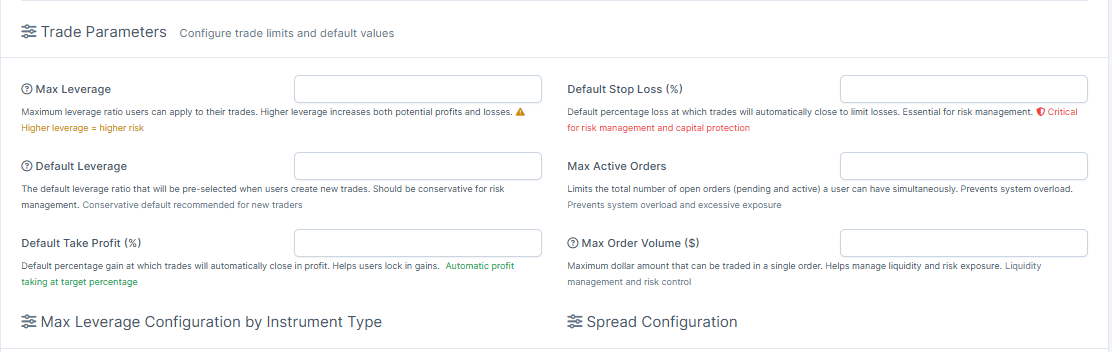
On the "Trading Parameters" presets you are able to manage default Leverage settings, Take Profit and Stop Loss constant numbers, Active Orders, Order Volumes, etc.
As well, managable the types of Leverage Configuration.
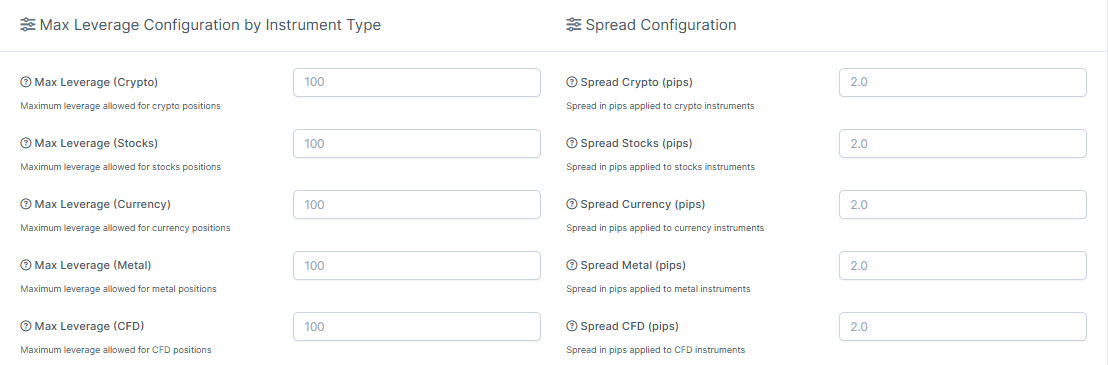
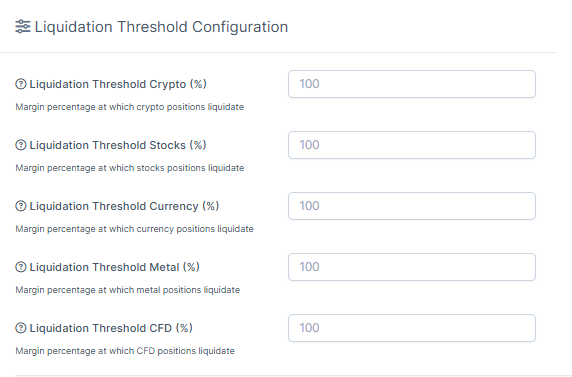
And Liquidation Configuration per user.
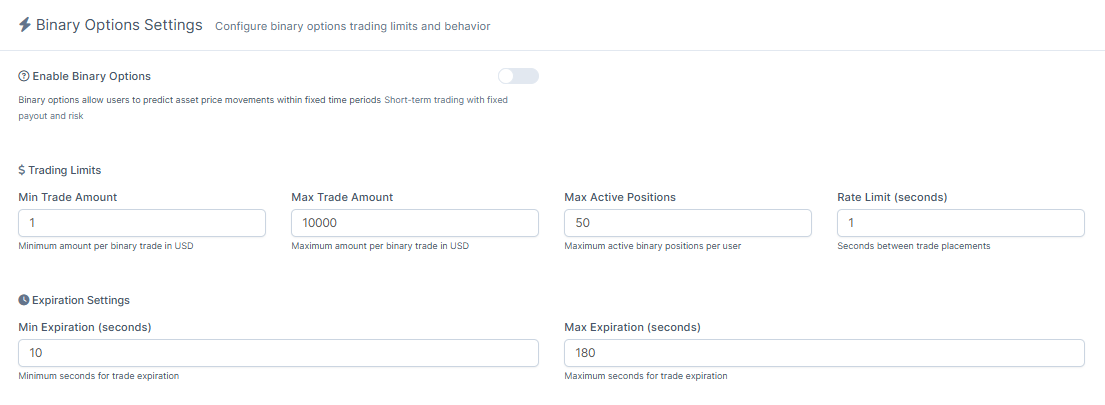
On the "Binary Options" presets you can manage Maximal Trading Amounts, Maximal Active Positions, Minimal and Maximal Expiration, etc.
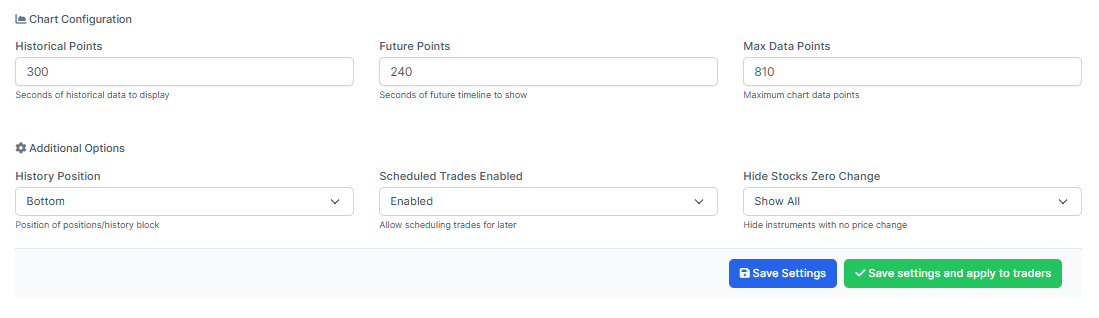
As you scroll down you're able to set up Chart Configuration.
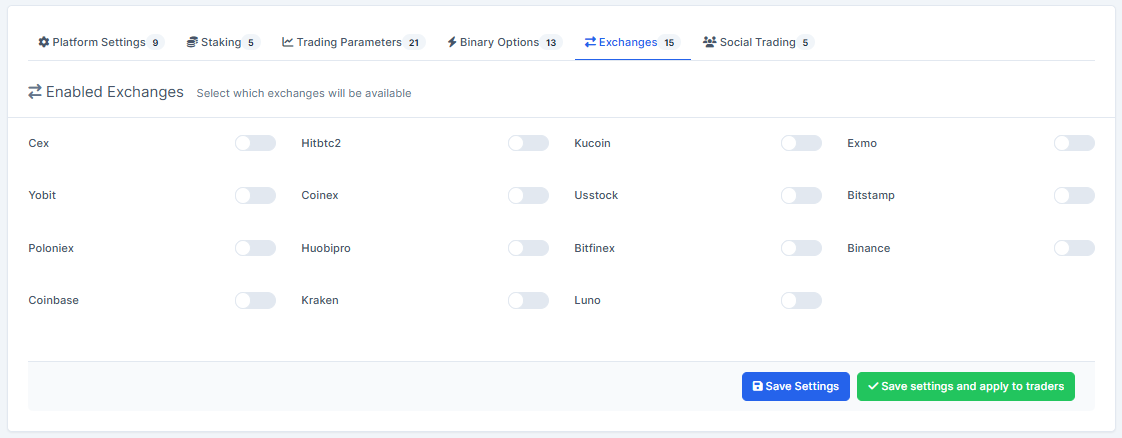
On the "Exchanges" you will be able to set available Exchanges for the particular Trader Group.
On the "Social Trading" you will be able to Enable the Soicial Trader per a preset and to set Maximal Number of Followers, Maximal Number of Copiers, and Default Allocation.
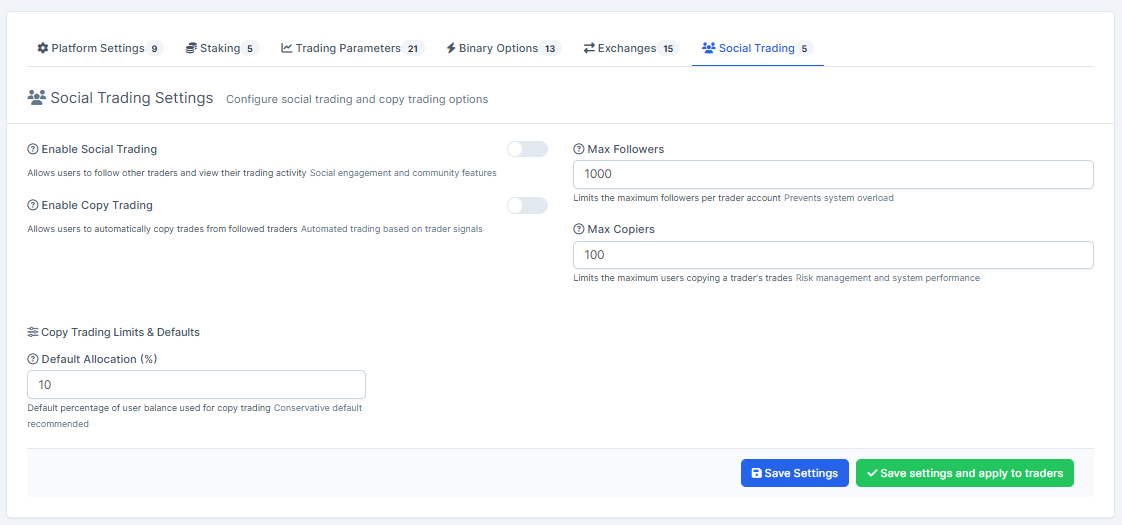
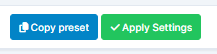
7. Once done, press on "Save Settings" to remember the choice, it will save the settings in the preset, without applying the changes to traders. "Apply" setting allows the settings to be applied to all traders with this preset. "Save and Apply" will activate both buttons.

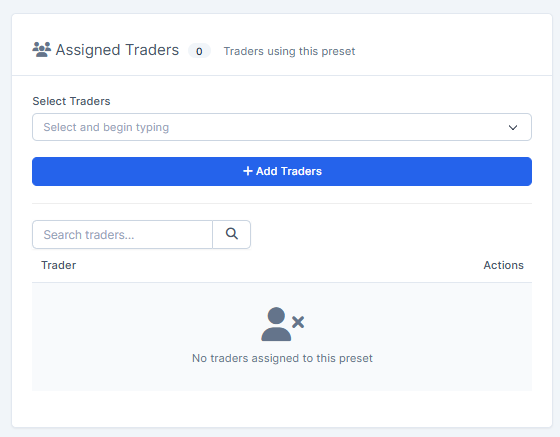
8. As well, you can choose particular traders to assign them to the preset on the spot.
9. In the case you need to douplicate the preset, you can press on "Copy Preset".
Managing the Settings per the Trader
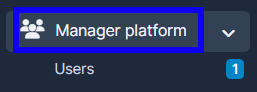
1. Go to "Manager Platform" in the menu on the left side of the page.
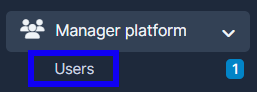
2. Choose the "Users" tab.
3. Press on "View" in the user's name.

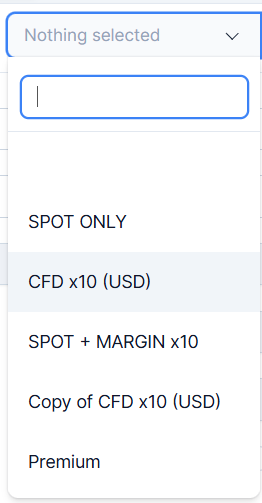
4. On "Summary" you will be able to choose the trading preset and synchronise it.
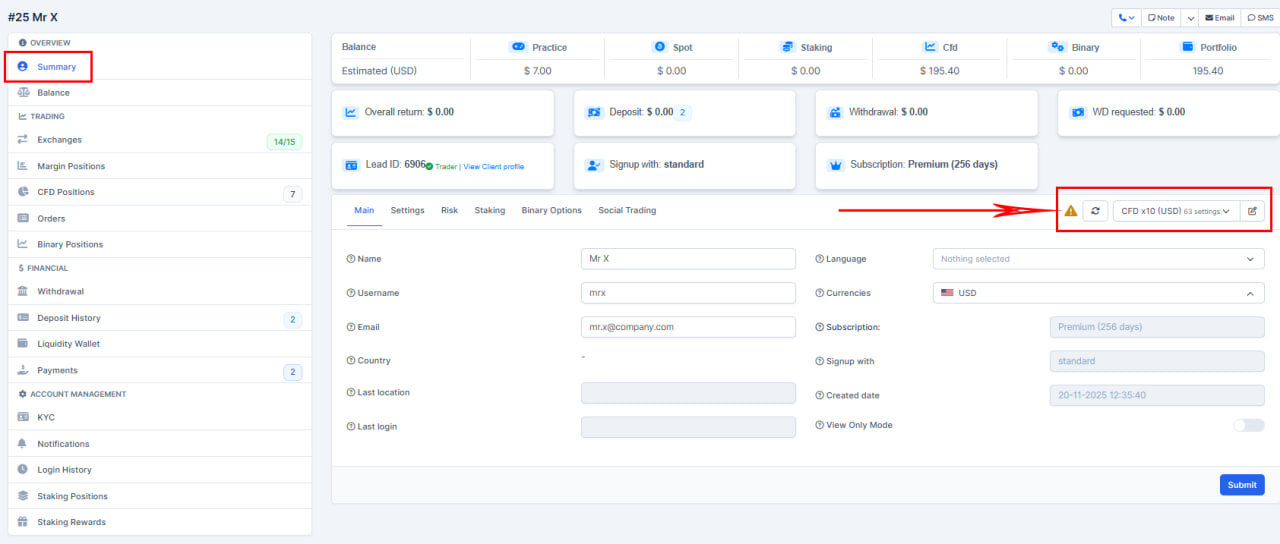
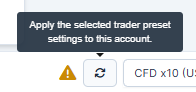
By the warning symbol, you can understand that the trader was not synchronised by the current trader settings.
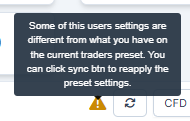
By this button you will be able to synchronise the preset settings to this account.
5. Press on "Submit" to remember the choice.
