Multiplatform sources functionality
IN THE CRM
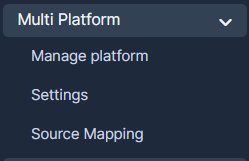
Setup-> Multi platform-> Source mapping
On this page you will be able to choose the platform where the trading account is created
In the case if there is nothing in the field in the Platform field, the default platform will be chosen.

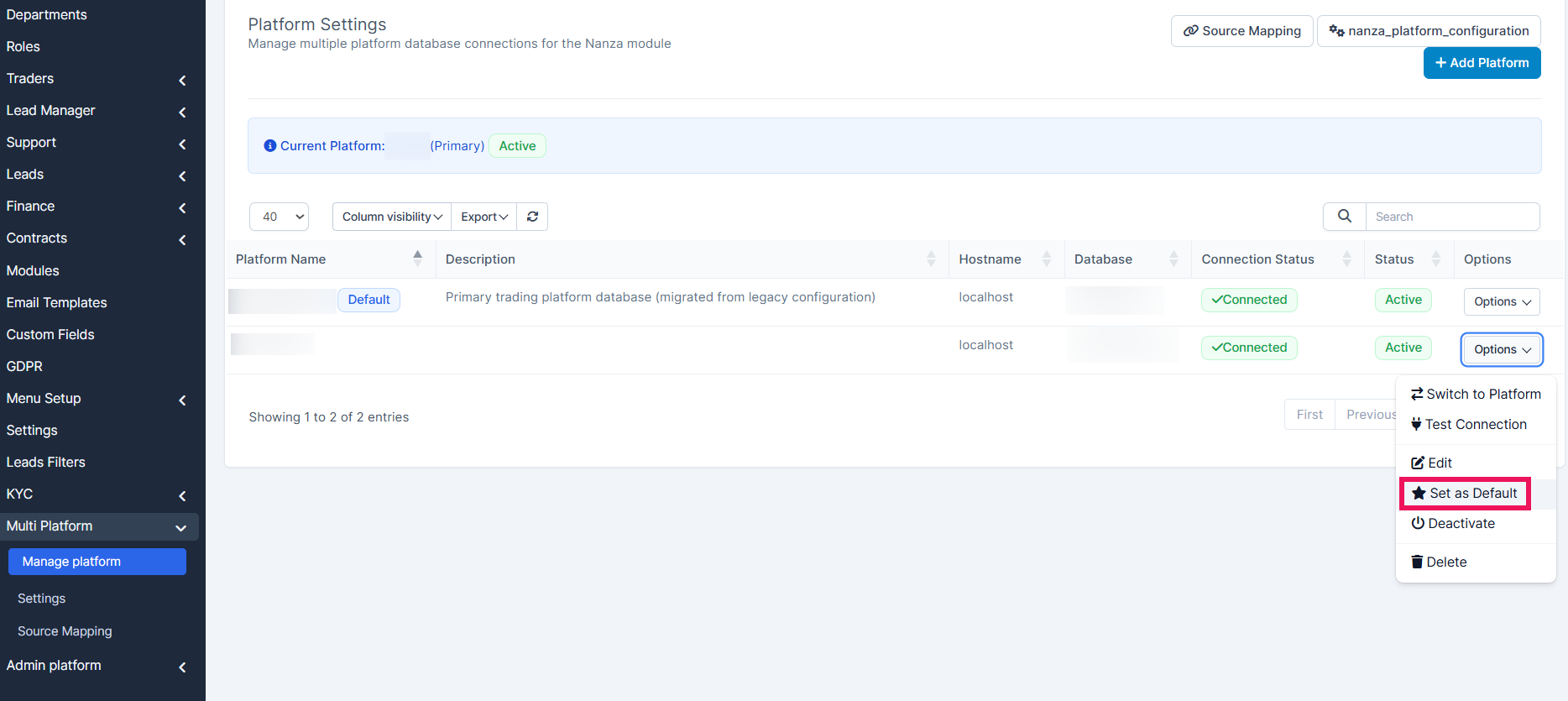
Changing Default Platform
You can find where to change the default platform here:
Setup->Multi Platform->Manage Platform Options->Set as Default
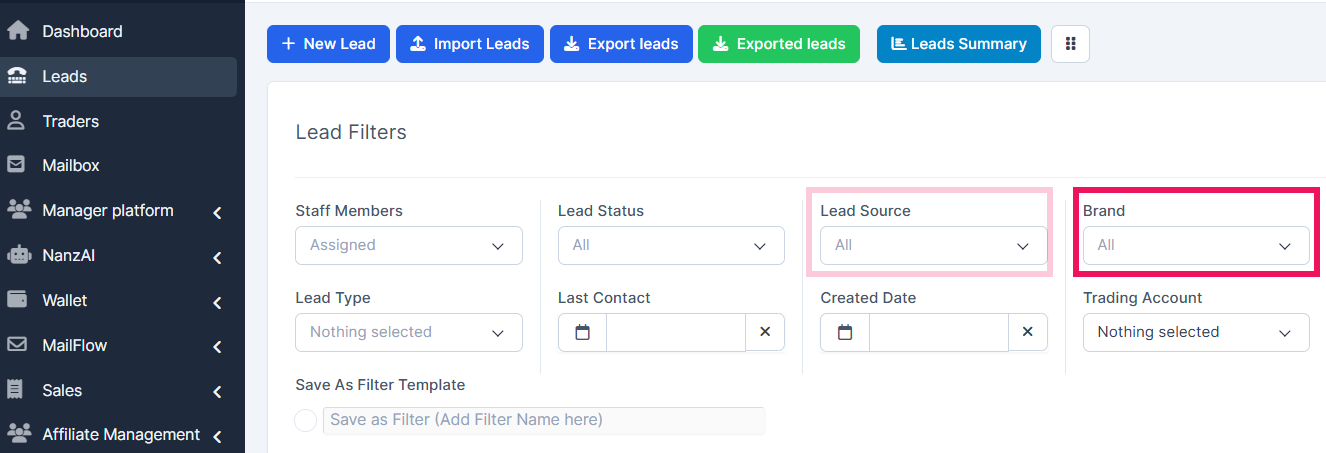
How to filter by Brand
Leads-> Brand
What's the difference between the "Lead Source" and "Brand" filters?
Filtering by "Lead Source": will allow you to choose the Lead Source on current CRM.
Filtering by "Brand" will show you leads with sources related to the platform.
For example, if Source1 and Source2 are connected to Platform1, filtering by brand Platform1 will show all leads with Source1 and Source2.
This is useful for users who may not know or remember which source is connected to which brand.
API management
API-> API management
The functionality stays the same, the API will be still defined by the source, which will be defined by the selected platform.
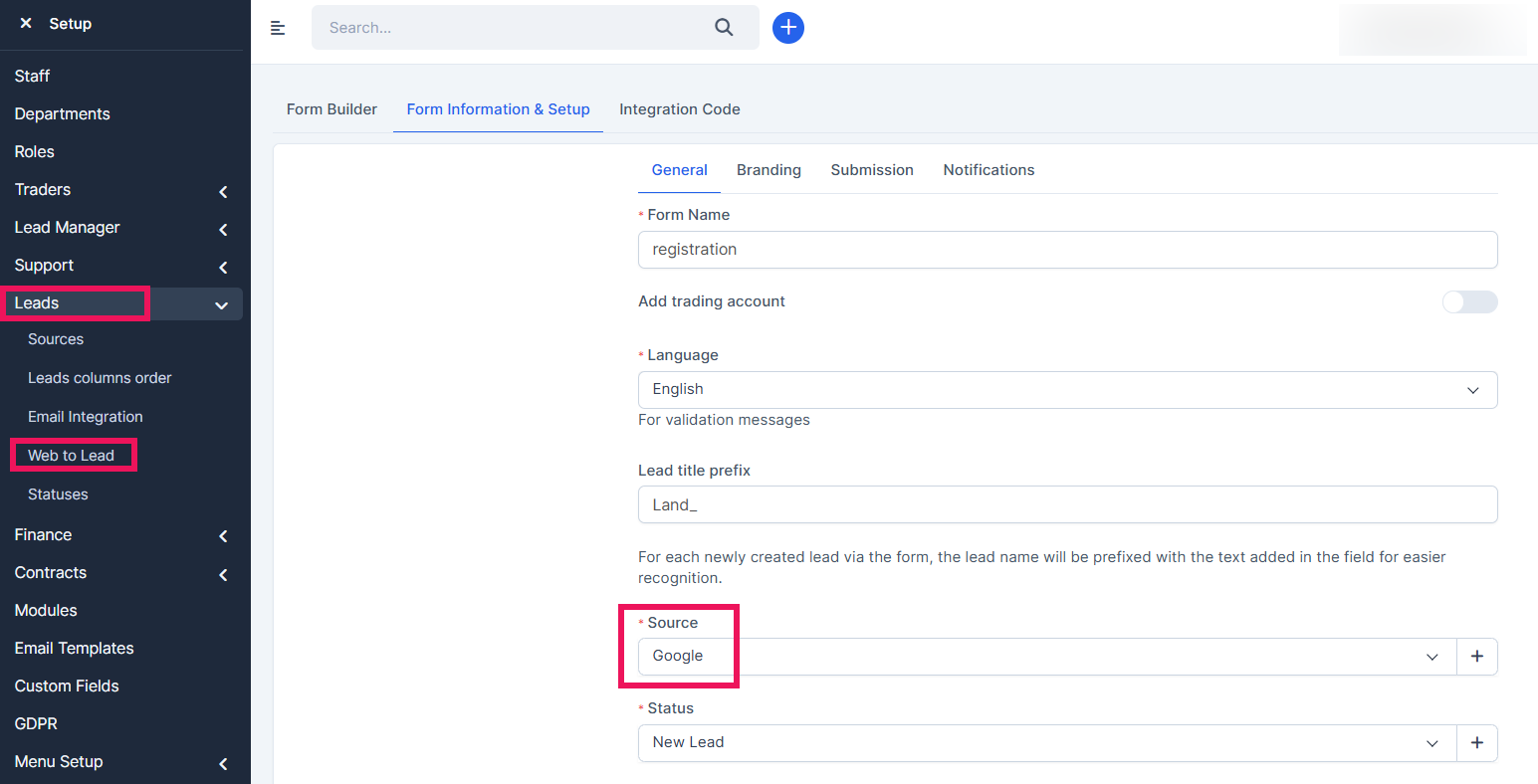
Choosing the source from your website
Setup-> Leads-> Web to lead-> Registration-> General-> Source (Choose the source) -> Submit
This will ensure that the settings for one platform were set. This particular source (e.g "Google") will be sent to Platform 1.
Choosing proper platform for the redirect from the website
The proper platform can be chosen in:
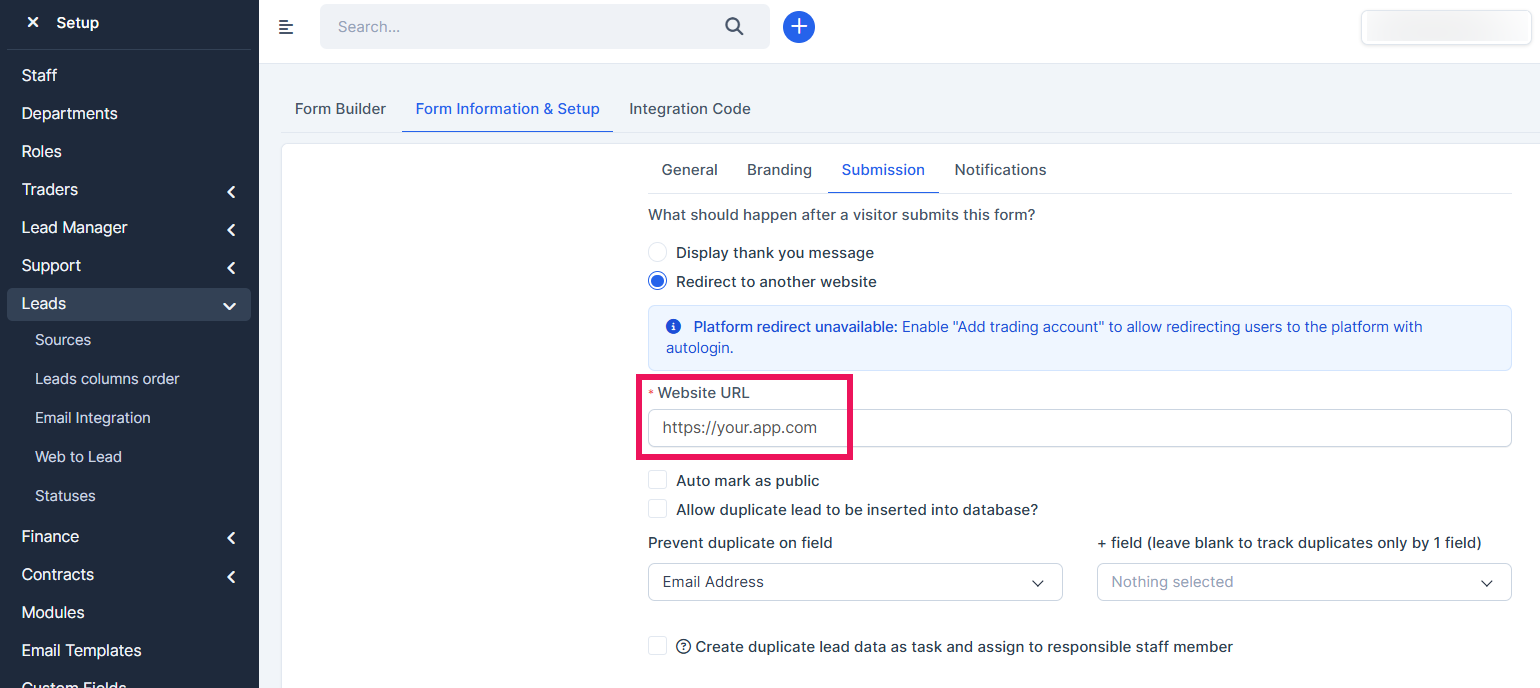
Setup-> Leads-> Web to lead-> Registration-> General-> Submission-> Redirect to another website-> Website URL-> Insert your platform URL-> Submit
To allow another source being attached to another Platform 2, ensure to save the previous source as was described above. Then repeat the action, choosing new source, submitting, and then inserting another app URL.